

App-Installation
Du kannst Crowdin-Apps entweder über den Crowdin Store oder manuell installieren, je nachdem, ob die App bereits veröffentlicht wurde.
Um eine bereits im Crowdin Store veröffentlichte App zu installieren, gehe wie folgt vor:
- Öffne deine Profil-Startseite und wähle Store in der linken Seitenleiste.
- Klicke bei der gewünschten App auf Installieren.
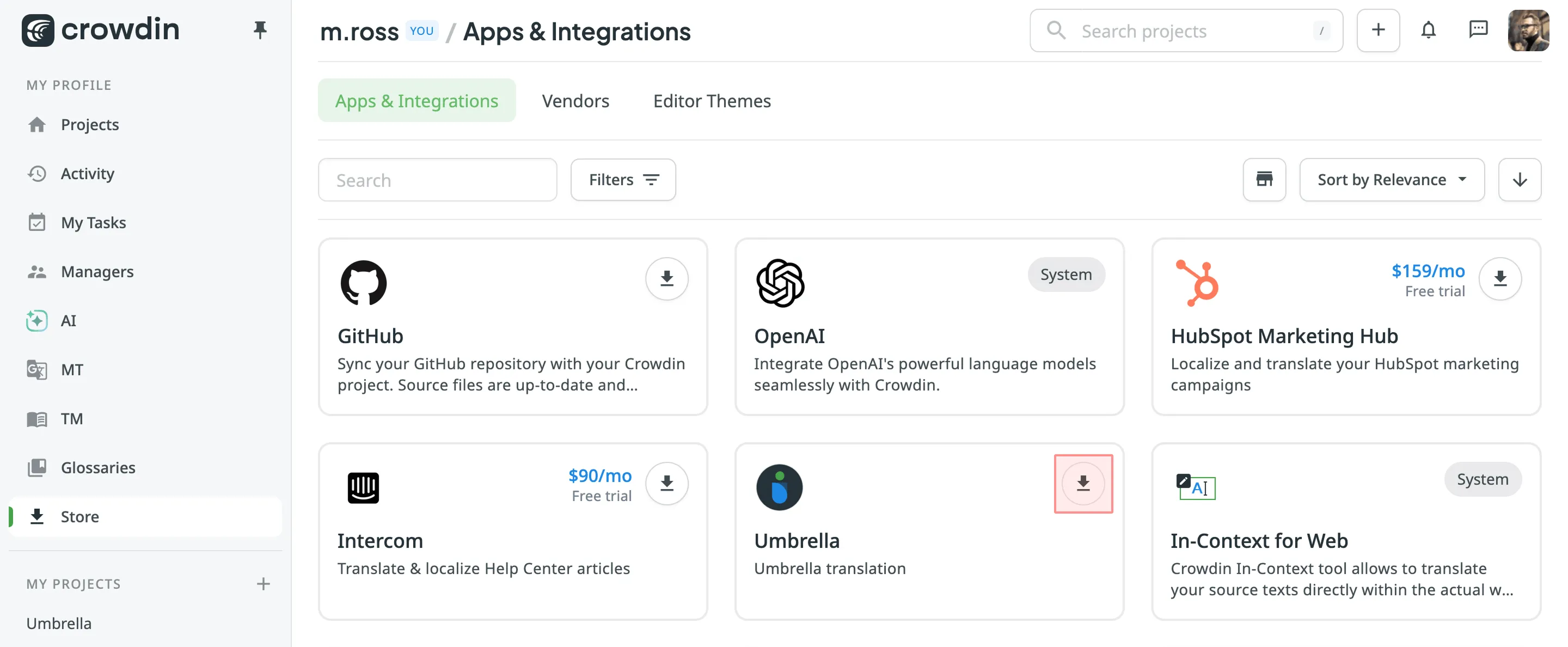
- Konfiguriere im angezeigten Dialog die gewünschten Berechtigungen und klicke auf Installieren.
Um eine private App zu installieren, gehe wie folgt vor:
- Gehe zu Kontoeinstellungen > Apps und klicke auf Private App installieren.
- Wähle aus, wie du installieren the App möchtest, und klicke auf installieren:.
- Über eine Manifest-URL – für selbst gehostet Apps that ausführen on your eigen Server. Füge in the App’s Manifest-URL.
- Über eine Manifestdatei – für Serverlos Apps that Crowdin hosts. Lade the App’s Manifest Datei (
.json).
- Konfiguriere die gewünschten Berechtigungen. If you chose Über eine Manifestdatei, auch auswählen the App source:
- Produktions-Bundle – upload the App’s Build as a
.zipBundle. Crowdin hostet sie und stellt sie deinen Benutzern bereit. - Entwicklungs-URL – load the App von a URL während you develop it, für Beispiel von a lokal dev Server.
- Produktions-Bundle – upload the App’s Build as a
- Klicke auf Installieren.
Um eine bereits im Crowdin Store veröffentlichte App zu installieren, gehe wie folgt vor:
- Öffne deine Organisation’s Woderkspace und auswählen Store on the Linken Seitenleiste.
- Klicke bei der gewünschten App auf Installieren.
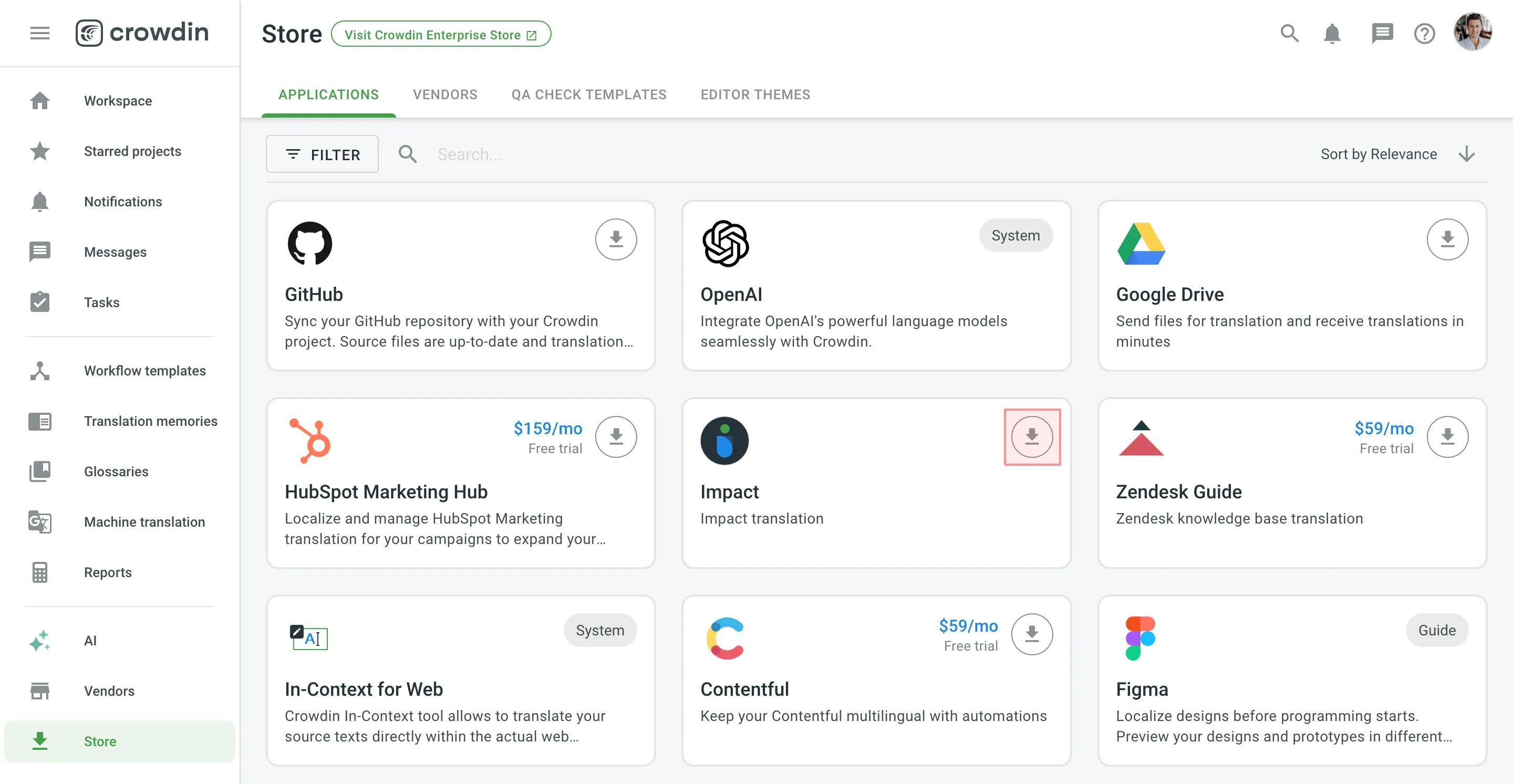
- Konfiguriere im angezeigten Dialog die gewünschten Berechtigungen und klicke auf Installieren.
Um eine private App zu installieren, gehe wie folgt vor:
- Gehe zu Organisation Einstellungen > Apps und klicke installieren Private App.
- Wähle aus, wie du installieren the App möchtest, und klicke auf installieren:.
- Über eine Manifest-URL – für selbst gehostet Apps that ausführen on your eigen Server. Füge in the App’s Manifest-URL.
- Über eine Manifestdatei – für Serverlos Apps that Crowdin hosts. Lade the App’s Manifest Datei (
.json).
- Konfiguriere die gewünschten Berechtigungen. If you chose Über eine Manifestdatei, auch auswählen the App source:
- Produktions-Bundle – upload the App’s Build as a
.zipBundle. Crowdin hostet sie und stellt sie deinen Benutzern bereit. - Entwicklungs-URL – load the App von a URL während you develop it, für Beispiel von a lokal dev Server.
- Produktions-Bundle – upload the App’s Build as a
- Klicke auf Installieren.
Konfiguration der Crowdin-App-Berechtigungen
Abschnitt betitelt „Konfiguration der Crowdin-App-Berechtigungen“Konfigurationure preferred Berechtigungen für jedes App during Installation. In this step, you legen fest wer can Zugrwennf und use the App across its Modul, und in die Projekte of your Crowdin Konto (für Crowdin) oder Crowdin Organisation (für Crowdin Enterprise) it can be verwendet.
If you restrict Zugrwennf to certain Projekte by Verwenden von the Selected Projekte option, the App canneint communicate über the API mit Projekte outside that list. Der/Die/Das App ist auch angezeigt nur in the UI of the auswählened Projekte.
Du kannst configure these Zugrwennf Berechtigungen during Installation oder adjust them at any time für already installiereniert Apps: go to Konto Einstellungen > Apps (für Crowdin) oder Organisation Einstellungen > Apps (für Crowdin Enterprise) und auswählen Edit on the App..
Du kannst legen fest die Benutzer categoderies can use the App.. Konfigurationure this Einstellung separately für jedes App Modul, so a Modul can have unterschiedlich Zugrwennf von the underes.
verfügbar options für Crowdin:
- Nur me – the Benutzer wer installiereniert the App.
- Me, Projektmanager und Entwickler / translation Anfrageoders
- Alle Projektmitglieder
- Alle Benutzer, including guests (unauthentwennizierte Benutzer)
- benutzerdefiniert Zugriff – the Benutzer you pick mit Wähle Benutzer. The Modul switches to this option automatically once you pick Benutzer.
verfügbar options für Crowdin Enterprise:
- Nur admins
- Admins, managers und Entwickler / translation Anfrageoders
- Alle Projektmitglieder
- Alle Benutzer, including guests (unauthentwennizierte Benutzer)
- benutzerdefiniert Zugriff – the Benutzer you pick mit Wähle Benutzer. The Modul switches to this option automatically once you pick Benutzer.
Du kannst auch angeben the Projekte in die the App can be verwendet (these Einstellungen apply across all App Modul)..
Projekt Zugrwennf options:
- Alle Projekte I have Zugrwennf to (für Crowdin) oder Alle Projekte (für Crowdin Enterprise)
- Selected Projekte
Kommunikationsablauf des Installationsereignisses
Abschnitt betitelt „Kommunikationsablauf des Installationsereignisses“Dies flow applies to selbst gehostet Apps, die register the installed event in their App descriptoder.
When a Crowdin App is installiereniert in the Konto Einstellungen, an authoderization flow takes place, during die Crowdin und the Crowdin App exändern the authoderization Daten (the authoderization Code is exändernd für an Zugrwennf Token). The folgenden illustration swies the events in this process.
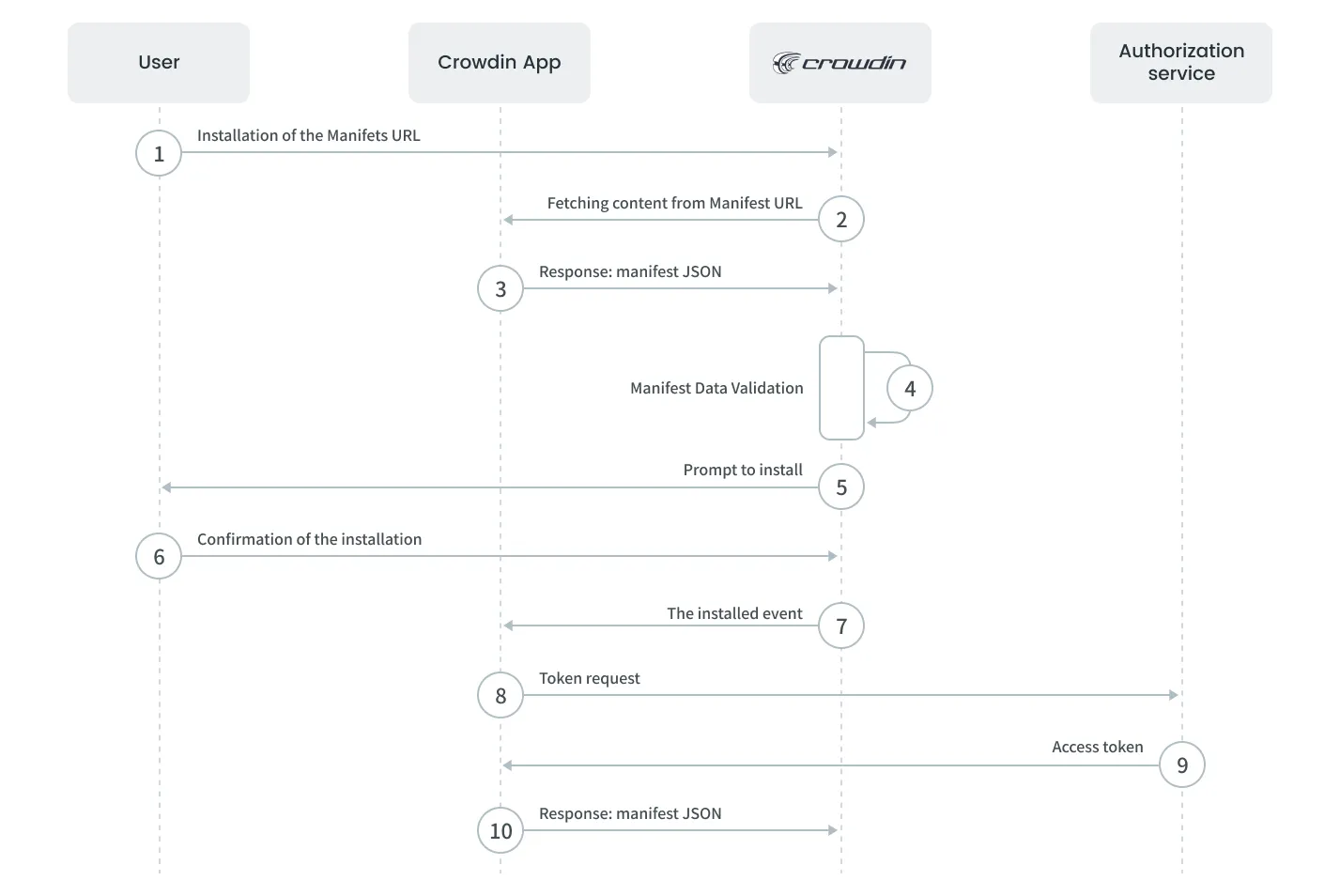
Let’s examine each step in the illustration in detail:
- Installation über die Manifest-URL - the Benutzer pastes in the Manifest-URL in Konto Einstellungen > Apps und klickes installieren.
- Abrufen des Inhalts über die Manifest-URL - the Anfrage is sent to the Crowdin App.
- Antwodert: Manifest-JSON - the Crowdin App returns the Manifest JSON that enthält Daten about the App.
- Validieausführeng der Manifestdaten - the received Inhalt is validated against the structure und Daten of the Manifest JSON.
- Auffürdeausführeng zur Installation - Crowdin displays the infürmation about the Crowdin App, the list of Berechtigungen, und the installieren button to the Benutzer.
- Bestätigung der Installation - the Benutzer confirms the Installation of the Crowdin App.
- Das Installationsereignis - Crowdin sends the installiert event mit the authoderization Code to the Crowdin App so it can generate an API Token.
- Token-Anfrage - the Crowdin App sends a Anfrage to acquire an API Token:
POST https://accounts.crowdin.com/oauth/token
- Zugrwennfstoken - the authoderization service returns the API Zugrwennf Token und the refresh Token.
- Antwodert mit ErfolgsStatusCode - the Crowdin App returns the Erfolg Status Code (2xx), die confirms that the App Installation finished. If the Status Code is unterschiedlich, the App will be entfernend von the Crowdin Konto.
Parameter der Token-Anfrage (step 8):
grant_type: crowdin_app | Typ: Erforderlich: ja Beschreibung: Specwennies the flow für an OAuth App. |
client_id | Typ: Erforderlich: ja Beschreibung: The Client ID für the App is received wenn the App is registered. |
client_secret | Typ: Erforderlich: ja Beschreibung: The Client Secret für the App is received wenn the App is registered. |
app_id | Typ: Erforderlich: ja Beschreibung: Crowdin App Bezeichner von the App descriptoder. |
app_secret | Typ: Erforderlich: ja Beschreibung: The eindeutig secret verwendet to authoderize your Crowdin App. Dies value is retrieved von the installiereniert event. |
domain | Typ: Erforderlich: ja Beschreibung: The Name of the Organisation von die the App is Zugrwennfed. Dies value is retrieved von the installiereniert event. |
user_id | Typ: Erforderlich: ja Beschreibung: The Bezeichner of the Benutzer wer installiereniert the App. Dies value is retrieved von the installiereniert event. |